> ## Documentation Index
> Fetch the complete documentation index at: https://docs-dev-chore-events-autoupdate.mintlify.site/llms.txt
> Use this file to discover all available pages before exploring further.

> Découvrez comment configurer un formulaire de mise à jour de politique à l’aide de Forms for Actions afin que les utilisateurs puissent examiner et accepter de nouvelles conditions d’utilisation ou des mises à jour de consentement.

# Cas d’utilisation : Configurer un formulaire de mise à jour de politique à l’aide de Forms

<Card title="Avant de commencer">
  1. Créez une [application Machine-to-Machine](/docs/fr-ca/get-started/auth0-overview/create-applications/machine-to-machine-apps) avec les scopes suivants activés :

  * `read:users`
  * `update:users`
  * `create:users`
  * `read:users_app_metadata`
  * `update:users_app_metadata`
  * `create:users_app_metadata`

  2. Ajoutez une [connexion Vault](/docs/fr-ca/customize/forms/vault) à l’aide des identifiants de l’application M2M.
</Card>

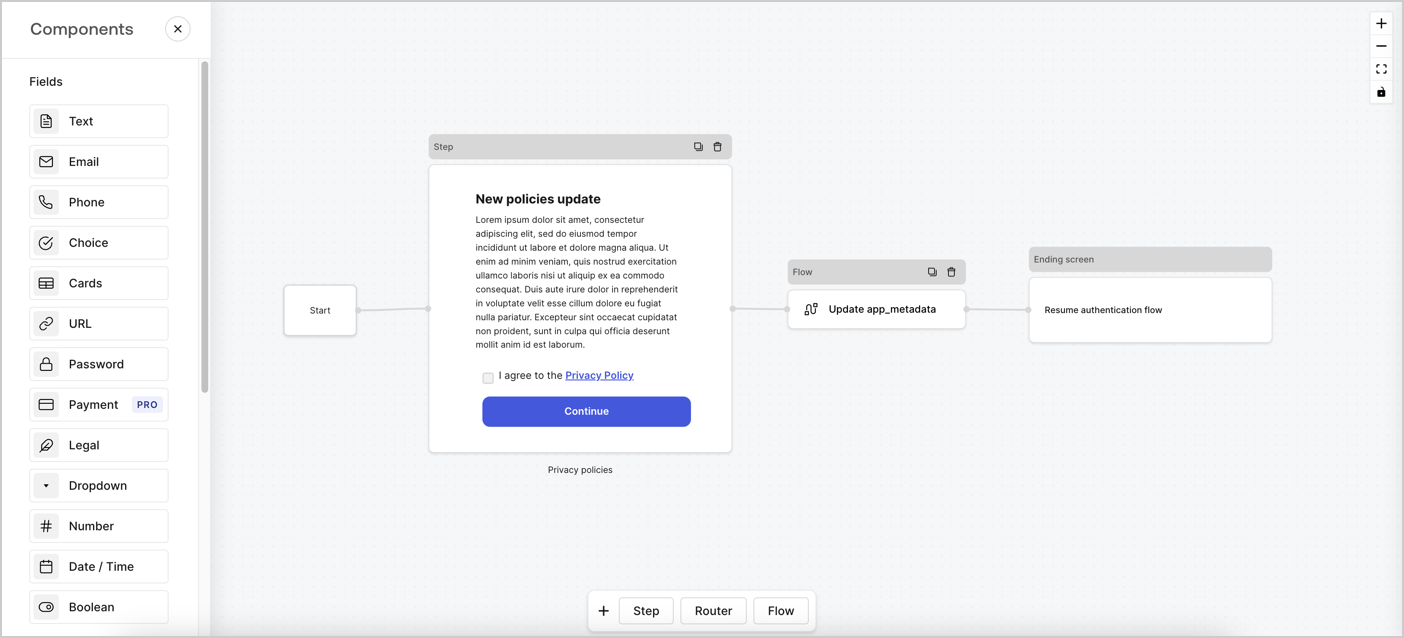
Forms for Actions vous permet de créer des flux personnalisés liés aux politiques de confidentialité et d’enregistrer le consentement dans l’objet `app_metadata`.
<Frame>
  <img src="https://mintcdn.com/docs-dev-chore-events-autoupdate/JrqAYUIkepsXuxEr/docs/images/cdy7uua7fh8z/6i68dMvHDTijfRmSgN1x8Q/ad900e7d4c0fb34645921435472b8684/privavy-policy-form.png?fit=max&auto=format&n=JrqAYUIkepsXuxEr&q=85&s=bd3f5988725a251e4b97851afff38966" alt="Dashboard > Actions > Forms > Cas d’utilisation de politique de confidentialité" data-og-width="1404" width="1404" data-og-height="638" height="638" data-path="docs/images/cdy7uua7fh8z/6i68dMvHDTijfRmSgN1x8Q/ad900e7d4c0fb34645921435472b8684/privavy-policy-form.png" data-optimize="true" data-opv="3" srcset="https://mintcdn.com/docs-dev-chore-events-autoupdate/JrqAYUIkepsXuxEr/docs/images/cdy7uua7fh8z/6i68dMvHDTijfRmSgN1x8Q/ad900e7d4c0fb34645921435472b8684/privavy-policy-form.png?w=280&fit=max&auto=format&n=JrqAYUIkepsXuxEr&q=85&s=ec8c521db17bac515d0242c0fdfc71ad 280w, https://mintcdn.com/docs-dev-chore-events-autoupdate/JrqAYUIkepsXuxEr/docs/images/cdy7uua7fh8z/6i68dMvHDTijfRmSgN1x8Q/ad900e7d4c0fb34645921435472b8684/privavy-policy-form.png?w=560&fit=max&auto=format&n=JrqAYUIkepsXuxEr&q=85&s=49fea054c3b51c01b8dc2f8d1d2196a2 560w, https://mintcdn.com/docs-dev-chore-events-autoupdate/JrqAYUIkepsXuxEr/docs/images/cdy7uua7fh8z/6i68dMvHDTijfRmSgN1x8Q/ad900e7d4c0fb34645921435472b8684/privavy-policy-form.png?w=840&fit=max&auto=format&n=JrqAYUIkepsXuxEr&q=85&s=2283ee941ac7a3334192fae165660b2f 840w, https://mintcdn.com/docs-dev-chore-events-autoupdate/JrqAYUIkepsXuxEr/docs/images/cdy7uua7fh8z/6i68dMvHDTijfRmSgN1x8Q/ad900e7d4c0fb34645921435472b8684/privavy-policy-form.png?w=1100&fit=max&auto=format&n=JrqAYUIkepsXuxEr&q=85&s=0233dc071e9965597582fe559291a02e 1100w, https://mintcdn.com/docs-dev-chore-events-autoupdate/JrqAYUIkepsXuxEr/docs/images/cdy7uua7fh8z/6i68dMvHDTijfRmSgN1x8Q/ad900e7d4c0fb34645921435472b8684/privavy-policy-form.png?w=1650&fit=max&auto=format&n=JrqAYUIkepsXuxEr&q=85&s=a132b0988847bc97690f0c358e703efe 1650w, https://mintcdn.com/docs-dev-chore-events-autoupdate/JrqAYUIkepsXuxEr/docs/images/cdy7uua7fh8z/6i68dMvHDTijfRmSgN1x8Q/ad900e7d4c0fb34645921435472b8684/privavy-policy-form.png?w=2500&fit=max&auto=format&n=JrqAYUIkepsXuxEr&q=85&s=885b493273271fce9298103534ab2fcd 2500w" />
</Frame>

Les sections ci-dessous expliquent comment créer un formulaire de mise à jour de politique à l’aide de nœuds et de flux, ainsi que les étapes pour ajouter votre formulaire à une Action [Post Login](/docs/fr-ca/customize/actions/explore-triggers/signup-and-login-triggers/login-trigger).

<h2 id="create-a-form-from-scratch">
  Créer un formulaire à partir de zéro
</h2>

Suivez ces étapes pour créer un formulaire afin de recueillir des informations :

1. Ouvrez l’éditeur de formulaires en sélectionnant **Auth0 Dashboard > Actions > Forms.**
2. Sélectionnez **Create Form** > **Start from scratch**.

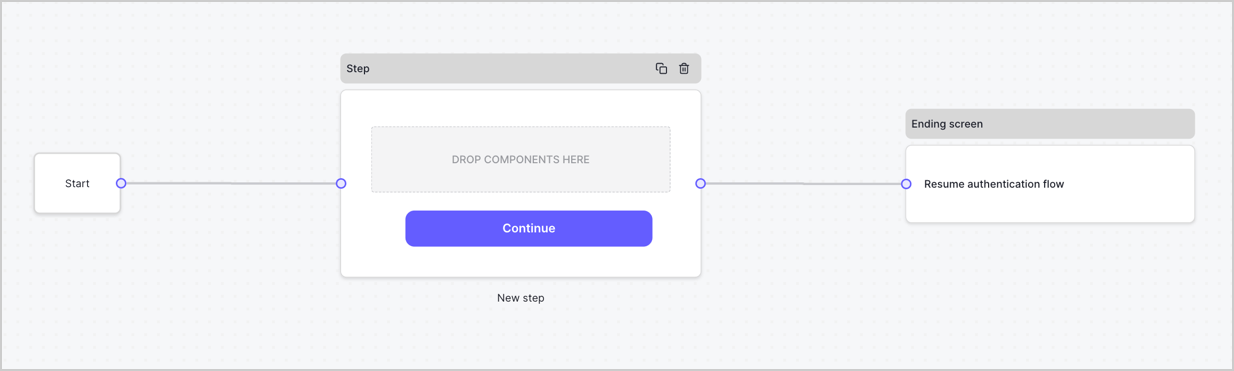
Par défaut, un nouveau formulaire contient un nœud Start, un nœud Step et un nœud Ending screen.
<Frame>
  <img src="https://mintcdn.com/docs-dev-chore-events-autoupdate/C-wLBWI5GtiUYTuO/docs/images/cdy7uua7fh8z/2TZ9jSjgEcARFpULI6hz4R/a4319a1bd482f2ee5cc23100fdb2f42c/New-form-Forms-for-action-use-case.png?fit=max&auto=format&n=C-wLBWI5GtiUYTuO&q=85&s=7d165a121e5a9bfef38c82b09a03f921" alt="Dashboard > Forms > Use Cases > Form" data-og-width="1234" width="1234" data-og-height="371" height="371" data-path="docs/images/cdy7uua7fh8z/2TZ9jSjgEcARFpULI6hz4R/a4319a1bd482f2ee5cc23100fdb2f42c/New-form-Forms-for-action-use-case.png" data-optimize="true" data-opv="3" srcset="https://mintcdn.com/docs-dev-chore-events-autoupdate/C-wLBWI5GtiUYTuO/docs/images/cdy7uua7fh8z/2TZ9jSjgEcARFpULI6hz4R/a4319a1bd482f2ee5cc23100fdb2f42c/New-form-Forms-for-action-use-case.png?w=280&fit=max&auto=format&n=C-wLBWI5GtiUYTuO&q=85&s=ad76673528e9cc61b95ce95756131035 280w, https://mintcdn.com/docs-dev-chore-events-autoupdate/C-wLBWI5GtiUYTuO/docs/images/cdy7uua7fh8z/2TZ9jSjgEcARFpULI6hz4R/a4319a1bd482f2ee5cc23100fdb2f42c/New-form-Forms-for-action-use-case.png?w=560&fit=max&auto=format&n=C-wLBWI5GtiUYTuO&q=85&s=f7eea182328fc615bd0b043c52919a7d 560w, https://mintcdn.com/docs-dev-chore-events-autoupdate/C-wLBWI5GtiUYTuO/docs/images/cdy7uua7fh8z/2TZ9jSjgEcARFpULI6hz4R/a4319a1bd482f2ee5cc23100fdb2f42c/New-form-Forms-for-action-use-case.png?w=840&fit=max&auto=format&n=C-wLBWI5GtiUYTuO&q=85&s=947f0c433c27a08a8aac370a9872922e 840w, https://mintcdn.com/docs-dev-chore-events-autoupdate/C-wLBWI5GtiUYTuO/docs/images/cdy7uua7fh8z/2TZ9jSjgEcARFpULI6hz4R/a4319a1bd482f2ee5cc23100fdb2f42c/New-form-Forms-for-action-use-case.png?w=1100&fit=max&auto=format&n=C-wLBWI5GtiUYTuO&q=85&s=310cdf70cc88507bcbb9b7ac23ea226a 1100w, https://mintcdn.com/docs-dev-chore-events-autoupdate/C-wLBWI5GtiUYTuO/docs/images/cdy7uua7fh8z/2TZ9jSjgEcARFpULI6hz4R/a4319a1bd482f2ee5cc23100fdb2f42c/New-form-Forms-for-action-use-case.png?w=1650&fit=max&auto=format&n=C-wLBWI5GtiUYTuO&q=85&s=43f4c5631e2b1e1b267bdfcaa40d6fc0 1650w, https://mintcdn.com/docs-dev-chore-events-autoupdate/C-wLBWI5GtiUYTuO/docs/images/cdy7uua7fh8z/2TZ9jSjgEcARFpULI6hz4R/a4319a1bd482f2ee5cc23100fdb2f42c/New-form-Forms-for-action-use-case.png?w=2500&fit=max&auto=format&n=C-wLBWI5GtiUYTuO&q=85&s=94f2d7c60e4678ccd548eb1527a2c887 2500w" />
</Frame>

<h3 id="configure-the-step-node">
  Configurer le nœud Step
</h3>

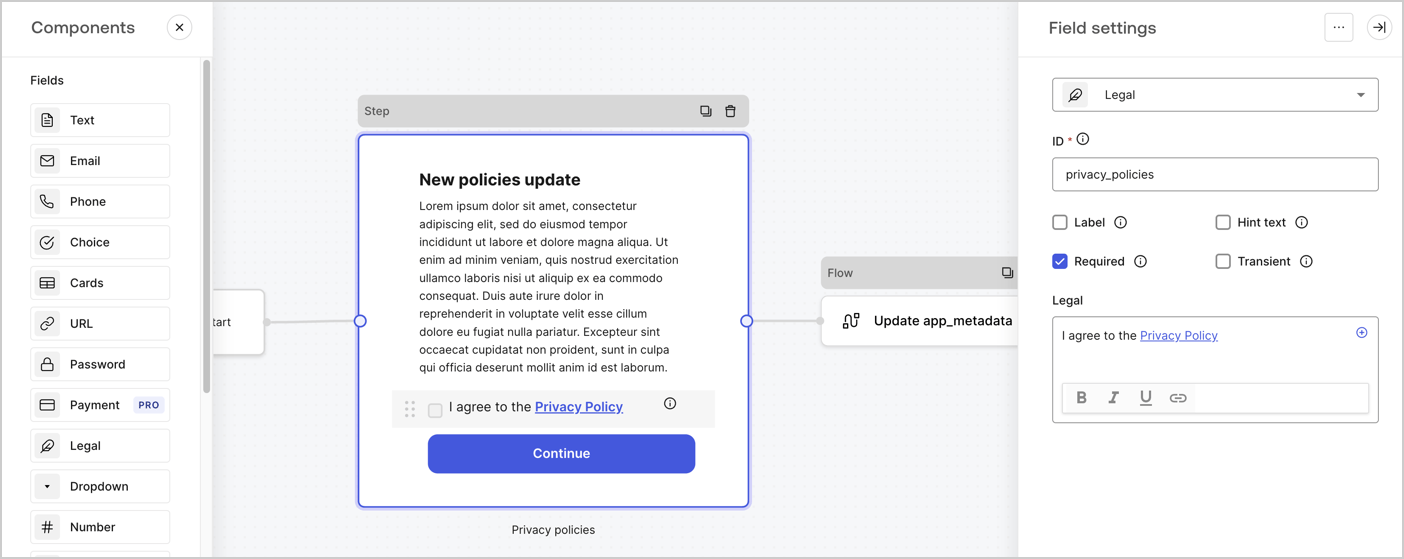
Le nœud Step est l’interface graphique visible par les utilisateurs. Ajoutez des [champs](/docs/fr-ca/customize/forms/nodes-and-components) au nœud Step pour recueillir la nouvelle valeur d’acceptation en suivant ces étapes :

1. Faites glisser un champ **Texte enrichi** du **menu Composants** vers le nœud **Step**.

   * **Texte enrichi** : Saisissez une description des mises à jour apportées à votre politique de confidentialité.
   * Sélectionnez **Enregistrer**.
2. Faites glisser un champ **Juridique** vers le nœud **Step**.

   * **ID** : Saisissez `privacy_policies`.
   * **Obligatoire** : Cochez la case.
   * **Juridique** : Saisissez `J’accepte la politique de confidentialité`.
   * Sélectionnez **Enregistrer**.
3. Sélectionnez **Publier** pour enregistrer.
<Frame>
  <img src="https://mintcdn.com/docs-dev-chore-events-autoupdate/zUYE0uCEntUxkkyV/docs/images/cdy7uua7fh8z/59zFFjQjAnjogkc2QGIqqJ/0ad66b1b636544122aa4e65968b76c2c/privacy-policy-step-node.png?fit=max&auto=format&n=zUYE0uCEntUxkkyV&q=85&s=25eac5b614a1fe8b493008a6de418ab8" alt="Dashboard > Actions > Forms > Cas d’utilisation du nœud Step de la politique de confidentialité" data-og-width="1404" width="1404" data-og-height="559" height="559" data-path="docs/images/cdy7uua7fh8z/59zFFjQjAnjogkc2QGIqqJ/0ad66b1b636544122aa4e65968b76c2c/privacy-policy-step-node.png" data-optimize="true" data-opv="3" srcset="https://mintcdn.com/docs-dev-chore-events-autoupdate/zUYE0uCEntUxkkyV/docs/images/cdy7uua7fh8z/59zFFjQjAnjogkc2QGIqqJ/0ad66b1b636544122aa4e65968b76c2c/privacy-policy-step-node.png?w=280&fit=max&auto=format&n=zUYE0uCEntUxkkyV&q=85&s=19306b502a38596184f7eb99d8d61a79 280w, https://mintcdn.com/docs-dev-chore-events-autoupdate/zUYE0uCEntUxkkyV/docs/images/cdy7uua7fh8z/59zFFjQjAnjogkc2QGIqqJ/0ad66b1b636544122aa4e65968b76c2c/privacy-policy-step-node.png?w=560&fit=max&auto=format&n=zUYE0uCEntUxkkyV&q=85&s=31243bf5827b922c2f9693a9fcbf9f85 560w, https://mintcdn.com/docs-dev-chore-events-autoupdate/zUYE0uCEntUxkkyV/docs/images/cdy7uua7fh8z/59zFFjQjAnjogkc2QGIqqJ/0ad66b1b636544122aa4e65968b76c2c/privacy-policy-step-node.png?w=840&fit=max&auto=format&n=zUYE0uCEntUxkkyV&q=85&s=76b488f2cfe3be0d5f61f691d9a0e4bf 840w, https://mintcdn.com/docs-dev-chore-events-autoupdate/zUYE0uCEntUxkkyV/docs/images/cdy7uua7fh8z/59zFFjQjAnjogkc2QGIqqJ/0ad66b1b636544122aa4e65968b76c2c/privacy-policy-step-node.png?w=1100&fit=max&auto=format&n=zUYE0uCEntUxkkyV&q=85&s=33837d03bea406c02b97a8a722b3a34a 1100w, https://mintcdn.com/docs-dev-chore-events-autoupdate/zUYE0uCEntUxkkyV/docs/images/cdy7uua7fh8z/59zFFjQjAnjogkc2QGIqqJ/0ad66b1b636544122aa4e65968b76c2c/privacy-policy-step-node.png?w=1650&fit=max&auto=format&n=zUYE0uCEntUxkkyV&q=85&s=02df382065a09e9570b9cbffd8c0a14f 1650w, https://mintcdn.com/docs-dev-chore-events-autoupdate/zUYE0uCEntUxkkyV/docs/images/cdy7uua7fh8z/59zFFjQjAnjogkc2QGIqqJ/0ad66b1b636544122aa4e65968b76c2c/privacy-policy-step-node.png?w=2500&fit=max&auto=format&n=zUYE0uCEntUxkkyV&q=85&s=2482fbd4737628c422383f8fedd29229 2500w" />
</Frame>

<h3 id="configure-the-flow-node">
  Configurer le nœud **Flow**
</h3>

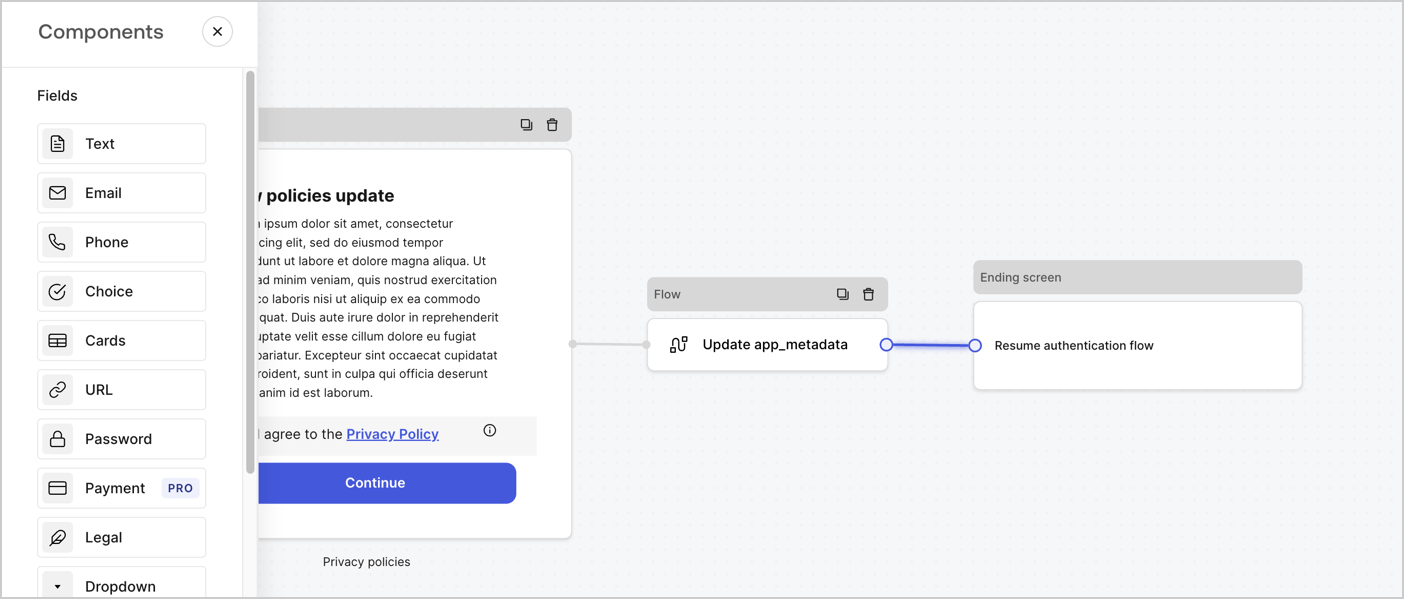
Ajoutez un nœud **Flow** après le nœud **Step** pour mettre à jour `app_metadata` et reprendre le flux d’authentification en suivant les étapes ci-dessous :

1. Sélectionnez **Flow** au bas de l’éditeur de formulaires.
2. Supprimez le lien existant entre les nœuds **Step** et **Ending Screen**.
3. Sélectionnez le nouveau **Flow** > **Click to add a flow** > **Create a new flow.**

   * Entrez `Update app_metadata` dans le champ **Name**.
   * Sélectionnez **Create**.
   * Sélectionnez **Save**.
4. Reliez le nœud **Flow** aux nœuds **Step** et **Ending Screen**, comme illustré ci-dessous.
5. Sélectionnez **Publish** pour enregistrer.
<Frame>
  <img src="https://mintcdn.com/docs-dev-chore-events-autoupdate/JrqAYUIkepsXuxEr/docs/images/cdy7uua7fh8z/6YIkzm7SrpM9LW76AXuRzh/353c518fe82bbaa440836da1d83596d6/link-policies.png?fit=max&auto=format&n=JrqAYUIkepsXuxEr&q=85&s=639f5c5dd01f2f30a4eb3e5ceae786a6" alt="Dashboard > Actions > Forms > Form" data-og-width="1404" width="1404" data-og-height="599" height="599" data-path="docs/images/cdy7uua7fh8z/6YIkzm7SrpM9LW76AXuRzh/353c518fe82bbaa440836da1d83596d6/link-policies.png" data-optimize="true" data-opv="3" srcset="https://mintcdn.com/docs-dev-chore-events-autoupdate/JrqAYUIkepsXuxEr/docs/images/cdy7uua7fh8z/6YIkzm7SrpM9LW76AXuRzh/353c518fe82bbaa440836da1d83596d6/link-policies.png?w=280&fit=max&auto=format&n=JrqAYUIkepsXuxEr&q=85&s=862823164a97f29f6833d25f44dc601e 280w, https://mintcdn.com/docs-dev-chore-events-autoupdate/JrqAYUIkepsXuxEr/docs/images/cdy7uua7fh8z/6YIkzm7SrpM9LW76AXuRzh/353c518fe82bbaa440836da1d83596d6/link-policies.png?w=560&fit=max&auto=format&n=JrqAYUIkepsXuxEr&q=85&s=25749f9048ede7c9e9a7682ba2988ece 560w, https://mintcdn.com/docs-dev-chore-events-autoupdate/JrqAYUIkepsXuxEr/docs/images/cdy7uua7fh8z/6YIkzm7SrpM9LW76AXuRzh/353c518fe82bbaa440836da1d83596d6/link-policies.png?w=840&fit=max&auto=format&n=JrqAYUIkepsXuxEr&q=85&s=44228878c4636021489e062a34b25d85 840w, https://mintcdn.com/docs-dev-chore-events-autoupdate/JrqAYUIkepsXuxEr/docs/images/cdy7uua7fh8z/6YIkzm7SrpM9LW76AXuRzh/353c518fe82bbaa440836da1d83596d6/link-policies.png?w=1100&fit=max&auto=format&n=JrqAYUIkepsXuxEr&q=85&s=265855431fd3479c142356d1f0160b16 1100w, https://mintcdn.com/docs-dev-chore-events-autoupdate/JrqAYUIkepsXuxEr/docs/images/cdy7uua7fh8z/6YIkzm7SrpM9LW76AXuRzh/353c518fe82bbaa440836da1d83596d6/link-policies.png?w=1650&fit=max&auto=format&n=JrqAYUIkepsXuxEr&q=85&s=8af6e7ca52a2c1935c9693316233a611 1650w, https://mintcdn.com/docs-dev-chore-events-autoupdate/JrqAYUIkepsXuxEr/docs/images/cdy7uua7fh8z/6YIkzm7SrpM9LW76AXuRzh/353c518fe82bbaa440836da1d83596d6/link-policies.png?w=2500&fit=max&auto=format&n=JrqAYUIkepsXuxEr&q=85&s=feb340382d78b3391578a844b2fe44a1 2500w" />
</Frame>

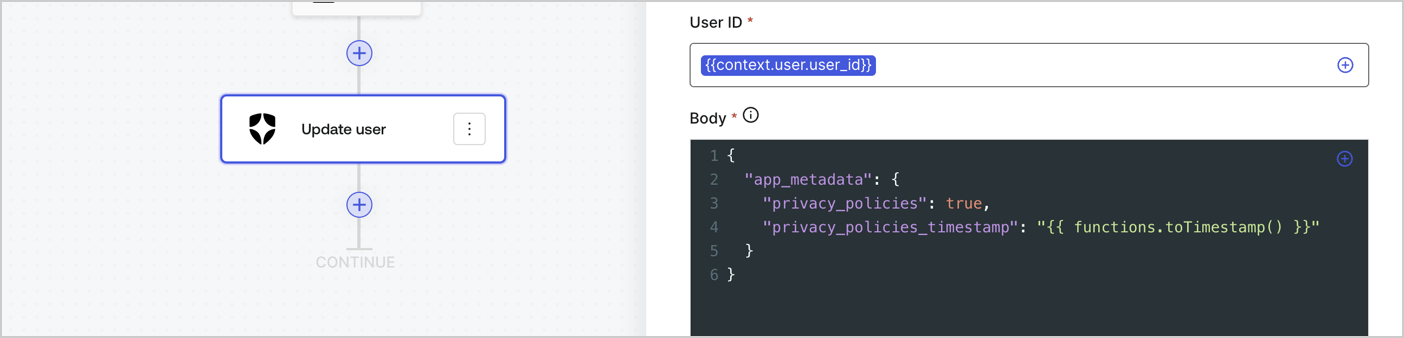
Ajoutez une action Auth0 **Update user** au flux en suivant les étapes ci-dessous :

1. Sélectionnez **Flow** **Update app\_metadata** > **Edit flow** pour ouvrir l’éditeur de flux dans un nouvel onglet.
2. Sous le StartAction, sélectionnez l’icône **+** pour ajouter une action **Update user**. Remplissez les champs ci-dessous, puis sélectionnez **Save** pour continuer.

   * **Connection** : Dans la liste déroulante, sélectionnez la connexion Vault de votre application M2M.

   * **User ID** : Entrez `{{context.user.user_id}}`.

   * **Body** : Copiez-collez le code suivant pour mettre à jour `app_metadata` avec les propriétés `privacy_policies` et `privacy_policies_timestamp`.

     ```text lines theme={null}
     {
       "app_metadata": {
         "privacy_policies": true,
         "privacy_policies_timestamp": "{{ functions.toTimestamp() }}"
       }
     }
     ```

   * Sélectionnez **Save**.
3. Sélectionnez **Publish** pour enregistrer.
<Frame>
  <img src="https://mintcdn.com/docs-dev-chore-events-autoupdate/Qs5ZwHnLtsQCywJ0/docs/images/cdy7uua7fh8z/CvMNIwWrOUwaFW4X3G28p/1fb70ae57a20749d9ffaaba8dc0b7e26/update-user-privacy.png?fit=max&auto=format&n=Qs5ZwHnLtsQCywJ0&q=85&s=82b9d40371bf01d5f18b13df8f5810ca" alt="Dashboard > Actions > Forms > User case privacy policy code" data-og-width="1404" width="1404" data-og-height="338" height="338" data-path="docs/images/cdy7uua7fh8z/CvMNIwWrOUwaFW4X3G28p/1fb70ae57a20749d9ffaaba8dc0b7e26/update-user-privacy.png" data-optimize="true" data-opv="3" srcset="https://mintcdn.com/docs-dev-chore-events-autoupdate/Qs5ZwHnLtsQCywJ0/docs/images/cdy7uua7fh8z/CvMNIwWrOUwaFW4X3G28p/1fb70ae57a20749d9ffaaba8dc0b7e26/update-user-privacy.png?w=280&fit=max&auto=format&n=Qs5ZwHnLtsQCywJ0&q=85&s=8307d480ec34cfd8e63ea722774aec54 280w, https://mintcdn.com/docs-dev-chore-events-autoupdate/Qs5ZwHnLtsQCywJ0/docs/images/cdy7uua7fh8z/CvMNIwWrOUwaFW4X3G28p/1fb70ae57a20749d9ffaaba8dc0b7e26/update-user-privacy.png?w=560&fit=max&auto=format&n=Qs5ZwHnLtsQCywJ0&q=85&s=2f938999c297924c907ac4a2e1890f4b 560w, https://mintcdn.com/docs-dev-chore-events-autoupdate/Qs5ZwHnLtsQCywJ0/docs/images/cdy7uua7fh8z/CvMNIwWrOUwaFW4X3G28p/1fb70ae57a20749d9ffaaba8dc0b7e26/update-user-privacy.png?w=840&fit=max&auto=format&n=Qs5ZwHnLtsQCywJ0&q=85&s=ef1dab8e0a266a2cbdc17f3501df6451 840w, https://mintcdn.com/docs-dev-chore-events-autoupdate/Qs5ZwHnLtsQCywJ0/docs/images/cdy7uua7fh8z/CvMNIwWrOUwaFW4X3G28p/1fb70ae57a20749d9ffaaba8dc0b7e26/update-user-privacy.png?w=1100&fit=max&auto=format&n=Qs5ZwHnLtsQCywJ0&q=85&s=2444735d43dc825e1cf0b5aef3e13581 1100w, https://mintcdn.com/docs-dev-chore-events-autoupdate/Qs5ZwHnLtsQCywJ0/docs/images/cdy7uua7fh8z/CvMNIwWrOUwaFW4X3G28p/1fb70ae57a20749d9ffaaba8dc0b7e26/update-user-privacy.png?w=1650&fit=max&auto=format&n=Qs5ZwHnLtsQCywJ0&q=85&s=03e86d7991379669db62f6a2e5467f74 1650w, https://mintcdn.com/docs-dev-chore-events-autoupdate/Qs5ZwHnLtsQCywJ0/docs/images/cdy7uua7fh8z/CvMNIwWrOUwaFW4X3G28p/1fb70ae57a20749d9ffaaba8dc0b7e26/update-user-privacy.png?w=2500&fit=max&auto=format&n=Qs5ZwHnLtsQCywJ0&q=85&s=5ea2c973af6c6dc2a5f08c99c67625e1 2500w" />
</Frame>

<Callout icon="file-lines" color="#0EA5E9" iconType="regular">
  Le flux **Update app\_metadata** ajoute la valeur `privacy_policies true` à l’objet `app_metadata` et génère aussi un horodatage à l’aide d’une [fonction utilitaire.](/docs/fr-ca/customize/forms/variables)
</Callout>

<h2 id="retrieve-the-form-render-code">
  Récupérer le code de rendu du formulaire
</h2>

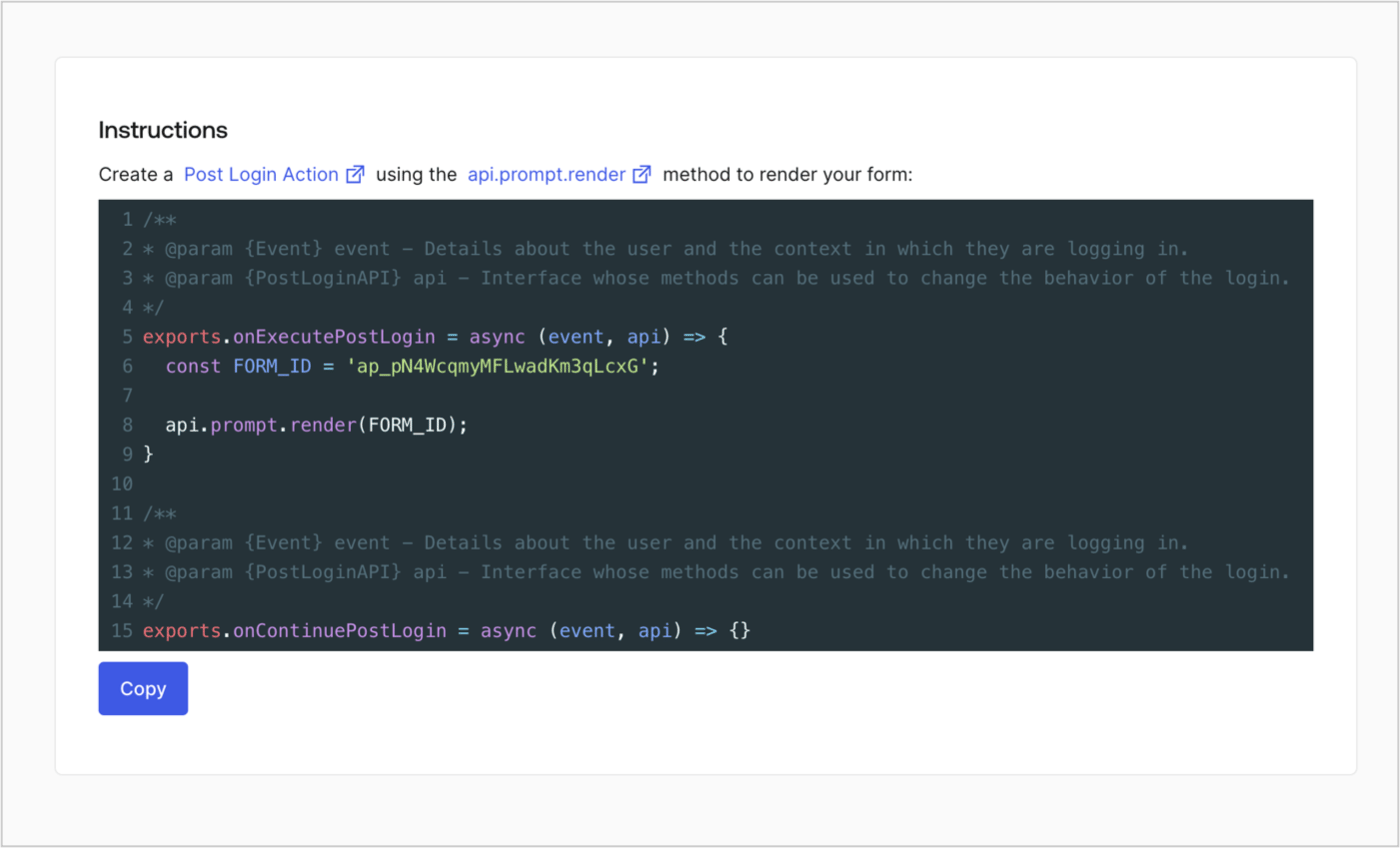
Récupérez le code de rendu de votre formulaire afin d’afficher le formulaire au moyen d’une Action Post Login personnalisée en suivant ces étapes :

* Dans l’éditeur de formulaires, sélectionnez **`<> Render`**.
* Sélectionnez **Copy**.
<Frame>
  <img src="https://mintcdn.com/docs-dev-chore-events-autoupdate/MOUmiRXu5I_3fPz2/docs/images/cdy7uua7fh8z/2EIUzc539sq9lwoTKbjoJv/496a864c0fc44a782c9cadca119dbfb0/embed.png?fit=max&auto=format&n=MOUmiRXu5I_3fPz2&q=85&s=7082c216911bba97387c766dfa39984d" alt="Dashboard > Actions > Forms > Form > Embed" data-og-width="1400" width="1400" data-og-height="848" height="848" data-path="docs/images/cdy7uua7fh8z/2EIUzc539sq9lwoTKbjoJv/496a864c0fc44a782c9cadca119dbfb0/embed.png" data-optimize="true" data-opv="3" srcset="https://mintcdn.com/docs-dev-chore-events-autoupdate/MOUmiRXu5I_3fPz2/docs/images/cdy7uua7fh8z/2EIUzc539sq9lwoTKbjoJv/496a864c0fc44a782c9cadca119dbfb0/embed.png?w=280&fit=max&auto=format&n=MOUmiRXu5I_3fPz2&q=85&s=e241f8c0ff5c2f4e2ce710bf0fb8ab2a 280w, https://mintcdn.com/docs-dev-chore-events-autoupdate/MOUmiRXu5I_3fPz2/docs/images/cdy7uua7fh8z/2EIUzc539sq9lwoTKbjoJv/496a864c0fc44a782c9cadca119dbfb0/embed.png?w=560&fit=max&auto=format&n=MOUmiRXu5I_3fPz2&q=85&s=e00a706e32c07b59485a8650fcc69c3b 560w, https://mintcdn.com/docs-dev-chore-events-autoupdate/MOUmiRXu5I_3fPz2/docs/images/cdy7uua7fh8z/2EIUzc539sq9lwoTKbjoJv/496a864c0fc44a782c9cadca119dbfb0/embed.png?w=840&fit=max&auto=format&n=MOUmiRXu5I_3fPz2&q=85&s=b3f2b101429be35fb987a4e40f23a2fc 840w, https://mintcdn.com/docs-dev-chore-events-autoupdate/MOUmiRXu5I_3fPz2/docs/images/cdy7uua7fh8z/2EIUzc539sq9lwoTKbjoJv/496a864c0fc44a782c9cadca119dbfb0/embed.png?w=1100&fit=max&auto=format&n=MOUmiRXu5I_3fPz2&q=85&s=50c0682479503c1f8d496764975ddf5e 1100w, https://mintcdn.com/docs-dev-chore-events-autoupdate/MOUmiRXu5I_3fPz2/docs/images/cdy7uua7fh8z/2EIUzc539sq9lwoTKbjoJv/496a864c0fc44a782c9cadca119dbfb0/embed.png?w=1650&fit=max&auto=format&n=MOUmiRXu5I_3fPz2&q=85&s=c895cb40bf7e41e983c73118d6d76350 1650w, https://mintcdn.com/docs-dev-chore-events-autoupdate/MOUmiRXu5I_3fPz2/docs/images/cdy7uua7fh8z/2EIUzc539sq9lwoTKbjoJv/496a864c0fc44a782c9cadca119dbfb0/embed.png?w=2500&fit=max&auto=format&n=MOUmiRXu5I_3fPz2&q=85&s=f93e3cb915eae1cc79a84bd74d622803 2500w" />
</Frame>

<h2 id="create-a-post-login-action">
  Créer une Action Post Login
</h2>

Créez une action post-login pour afficher votre formulaire en suivant les étapes ci-dessous :

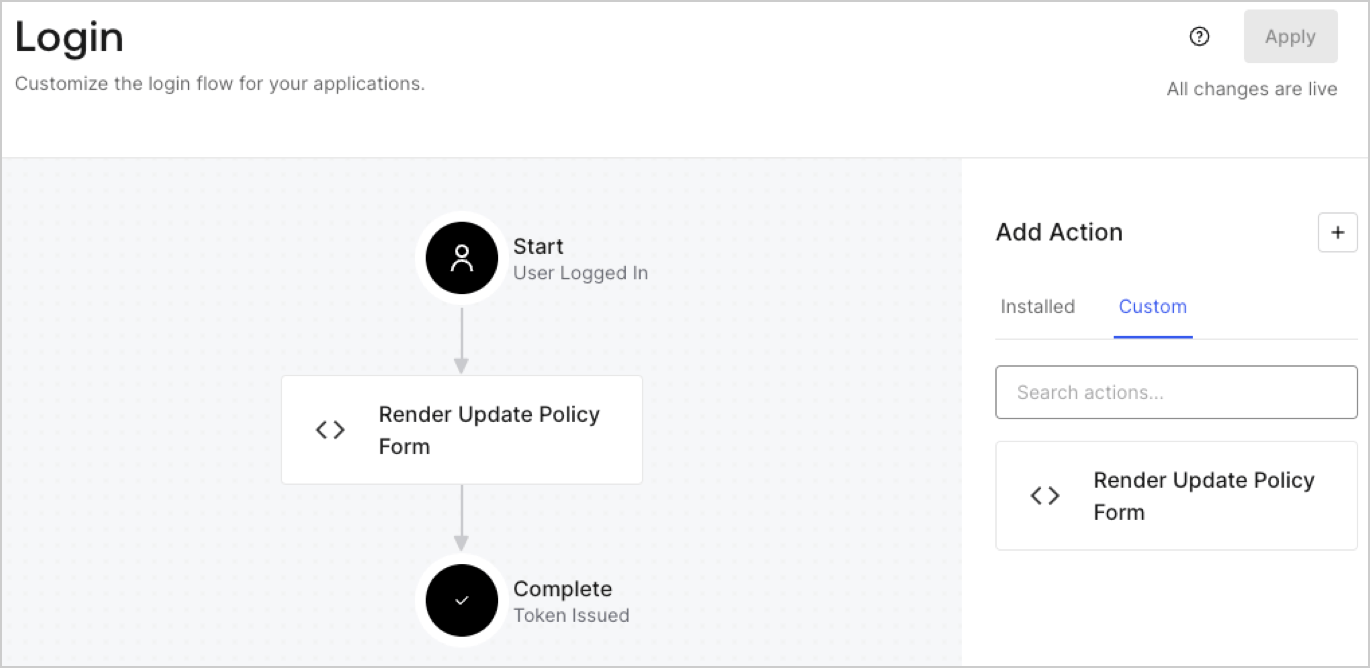
1. Accédez à **Auth0 Dashboard > Actions > Flows > Login.**
2. Sélectionnez l’icône **+**, puis **Build from scratch** :

   * **Nom** : Entrez `Render Update Policy Form`.
   * **Déclencheur** : Sélectionnez `Login / Post Login`.
   * **Runtime** : Sélectionnez la version recommandée.
3. Sélectionnez **Créer**.

Pour configurer l’action post-login :

1. Supprimez le code existant dans l’éditeur de code.
2. Collez le code de rendu du formulaire dans l’éditeur de code.
3. Modifiez le code pour définir la logique conditionnelle qui affichera le formulaire.

   ```javascript lines theme={null}
   /**
   * @param {Event} event - Détails sur l’utilisateur et le contexte dans lequel il se connecte.
   * @param {PostLoginAPI} api - Interface dont les méthodes peuvent être utilisées pour modifier le comportement de la connexion.
   */
   exports.onExecutePostLogin = async (event, api) => {
     const FORM_ID = 'REPLACE_WITH_YOUR_FORM_ID';

     if (event.user.app_metadata.privacy_policies !== true) {
       api.prompt.render(FORM_ID);
     }
   }

   exports.onContinuePostLogin = async (event, api) => { }
   ```

   <Callout icon="file-lines" color="#0EA5E9" iconType="regular">
     L’exemple de code ci-dessus affichera le formulaire si la propriété `privacy_policies` est absente de l’objet app metadata de l’utilisateur.
   </Callout>
4. Sélectionnez **Déployer**.
5. Glissez-déposez l’Action **Render Update Policy Form** dans le flux de **Login**.
   <Frame>
     <img src="https://mintcdn.com/docs-dev-chore-events-autoupdate/bbEbROOHwGAWmGEh/docs/images/cdy7uua7fh8z/5TOwDgevZsBqd7yZynUYWU/41ca909dc3007aed4f40ff794a05efa5/postlogin.png?fit=max&auto=format&n=bbEbROOHwGAWmGEh&q=85&s=f36186ba9174f6d54f7f21b26c3b1590" alt="Dashboard > Forms > cas d’utilisation > action de connexion pour afficher le formulaire de mise à jour de la politique" data-og-width="1370" width="1370" data-og-height="668" height="668" data-path="docs/images/cdy7uua7fh8z/5TOwDgevZsBqd7yZynUYWU/41ca909dc3007aed4f40ff794a05efa5/postlogin.png" data-optimize="true" data-opv="3" srcset="https://mintcdn.com/docs-dev-chore-events-autoupdate/bbEbROOHwGAWmGEh/docs/images/cdy7uua7fh8z/5TOwDgevZsBqd7yZynUYWU/41ca909dc3007aed4f40ff794a05efa5/postlogin.png?w=280&fit=max&auto=format&n=bbEbROOHwGAWmGEh&q=85&s=49b7f6dfa1506bde84f7d126a516e518 280w, https://mintcdn.com/docs-dev-chore-events-autoupdate/bbEbROOHwGAWmGEh/docs/images/cdy7uua7fh8z/5TOwDgevZsBqd7yZynUYWU/41ca909dc3007aed4f40ff794a05efa5/postlogin.png?w=560&fit=max&auto=format&n=bbEbROOHwGAWmGEh&q=85&s=545af1dd87c12d0a0b707f355147b8bc 560w, https://mintcdn.com/docs-dev-chore-events-autoupdate/bbEbROOHwGAWmGEh/docs/images/cdy7uua7fh8z/5TOwDgevZsBqd7yZynUYWU/41ca909dc3007aed4f40ff794a05efa5/postlogin.png?w=840&fit=max&auto=format&n=bbEbROOHwGAWmGEh&q=85&s=2252080b06f83752b89d9e79baeb0b24 840w, https://mintcdn.com/docs-dev-chore-events-autoupdate/bbEbROOHwGAWmGEh/docs/images/cdy7uua7fh8z/5TOwDgevZsBqd7yZynUYWU/41ca909dc3007aed4f40ff794a05efa5/postlogin.png?w=1100&fit=max&auto=format&n=bbEbROOHwGAWmGEh&q=85&s=d830ce908d08239c681ddaaead8d3e23 1100w, https://mintcdn.com/docs-dev-chore-events-autoupdate/bbEbROOHwGAWmGEh/docs/images/cdy7uua7fh8z/5TOwDgevZsBqd7yZynUYWU/41ca909dc3007aed4f40ff794a05efa5/postlogin.png?w=1650&fit=max&auto=format&n=bbEbROOHwGAWmGEh&q=85&s=c7a04991bbf815a52abbba88df4d2d57 1650w, https://mintcdn.com/docs-dev-chore-events-autoupdate/bbEbROOHwGAWmGEh/docs/images/cdy7uua7fh8z/5TOwDgevZsBqd7yZynUYWU/41ca909dc3007aed4f40ff794a05efa5/postlogin.png?w=2500&fit=max&auto=format&n=bbEbROOHwGAWmGEh&q=85&s=3151fd23b7a86f29f3caed0d6abf0c78 2500w" />
   </Frame>
6. Sélectionnez **Appliquer**.

<h3 id="test-implementation">
  Test de la mise en œuvre
</h3>

Testez la mise en œuvre en suivant ces étapes :

1. Connectez-vous avec un utilisateur existant dont l’attribut app`_metadata` `privacy_policies` n’a aucune valeur.
2. L’Action post-login dans le flux de Login affichera le formulaire et demandera l’acceptation.
3. Sélectionnez **Auth0 Dashboard > User Management > Users,** repérez l’utilisateur et vérifiez que l’attribut `app_metadata` `privacy_policies` contient la valeur `true` ainsi qu’un horodatage.
